This guide was most recently updated on Wed, Apr 2nd, 2020. Below are the package versions used:
- Ruby 2.6.3
- Jekyll 4.0.0
Screenshots may be outdated.
A few years ago, we originally posted our Jekyll 3.0 on Netlify step-by-step guide. Since then, and with the introduction of Jekyll 4.0, deploying a Jekyll site to Netlify–with continuous deployment–has never been easier.
If you already have a Jekyll 4.0 site prepared, you can jump ahead to Connecting to Netlify. Otherwise, let’s begin!
Installing Jekyll
This guide assumes you have Ruby and RubyGems installed.
Open your terminal, and enter the following command:
$ gem install jekyllJekyll will create a folder with all the necessary elements for your project:
$ jekyll new PATH/TO/projectChange to your new directory:
$ cd PATH/TO/projectJekyll can act as a server so that you can preview your content:
$ jekyll serveThis will create a version of your site that you can access at http://localhost:4000. Congratulations! You’ve locally deployed a Jekyll 4.0 site with Netlify.
Preparing your project for GitHub
In order for Netlify to be able to continuously deploy your site, your site must be hosted in a Git repository. This guide will talk through the steps on how to create a repository for your site using GitHub.
In the terminal, run the following command:
$ bundle initNext, run this command:
$ bundle installThis will install the jekyll gem and create a file called Gemfile.lock. This file will ensure that Netlify always uses the same version of Jekyll that you used to build your site, thus avoiding any nasty surprises.
We’re now ready to push the site to GitHub.
Creating your Git Repo
Create a new repository on GitHub. This could be performed using GitHub Desktop however, for the purposes of this guide, we will utilise the command line.
To avoid errors, do not initialize the new repository with README, license, or gitignore files. You can add these files after your project has been pushed to GitHub.
Open Terminal (for Mac users) or the command prompt (for Windows and Linux users).
For our purposes, let’s call your new repo “jekyll”.
In the terminal, whilst in your site directory, initialize the directory as a Git repository:
$ git initAdd the files in your new local repository. This stages them for the first commit:
$ git add .Commit the files that you’ve staged in your local repository:
$ git commit -m 'First commit'At the top of your GitHub repository’s Quick Setup page, click the clipboard icon to copy the remote repository URL.
In Terminal, add the URL for the remote repository where your local repository will be pushed.
git remote add origin [your_Git_repository_URL]Verify your URL:
git remote -vNow, it’s time to push the changes in your local repository to GitHub:
git push -u origin masterNow that your assets are up and running on GitHub, let’s connect them to Netlify.
Connecting to Netlify
Step 1: Add Your New Site
Once you log in to Netlify, you’ll be taken to https://app.netlify.com/. From here, select ‘New site from Git’:

Step 2: Link to Your GitHub
Clicking “New Site” brings you to this screen:
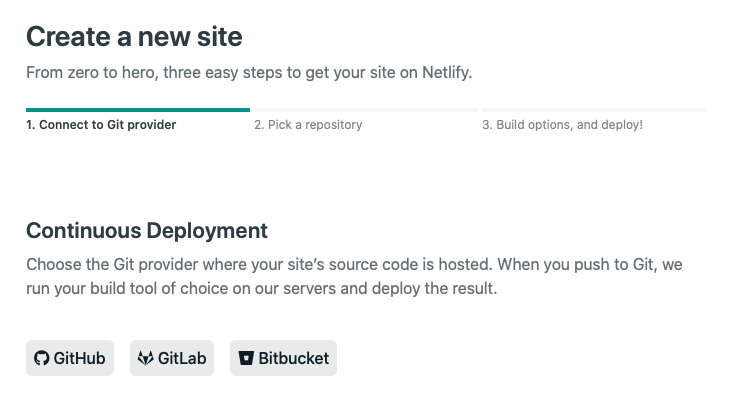
Whenever you push an update to GitHub (or GitLab/BitBucket), Netlify will automatically deploy your updates and changes!
Since your assets are hosted on your Git provider, you’ll need to link Netlify to that provider. Follow the steps within the UI to link your account.
Step 3: Authorize Netlify
It’s time to allow Netlify and GitHub to talk to each other. Clicking the “Authorize Application” button will do just that. Netlify doesn’t store your GitHub access token on our servers. If you’d like to know more about the permissions Netlify requests and why we need them, you can visit https://www.netlify.com/docs/github-permissions/.
Step 4: Choose Your Repo
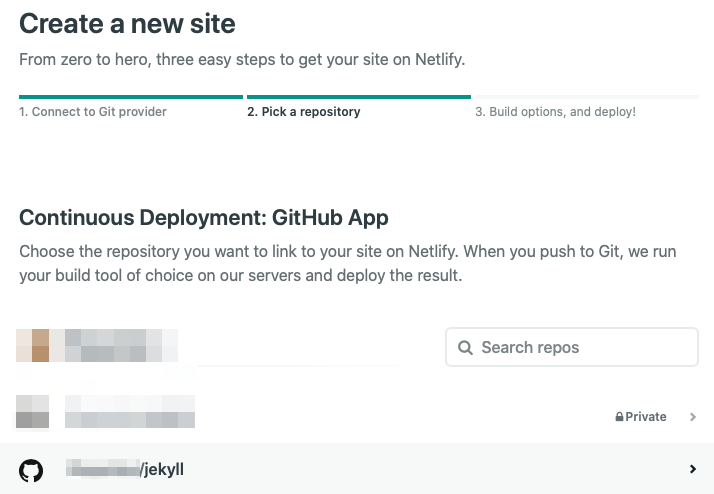
Now that you’ve connected Netlify and GitHub, you can see a list of your Git repos. There’s the “jekyll” repo you just pushed to GitHub. Let’s select it.
Step 5: Configure Your Settings
You now have the option to configure your deploy settings. For the purposes of this tutorial, the default parameters gathered by Netlify are appropriate. Click “Save”.
Step 6: Build Your Site
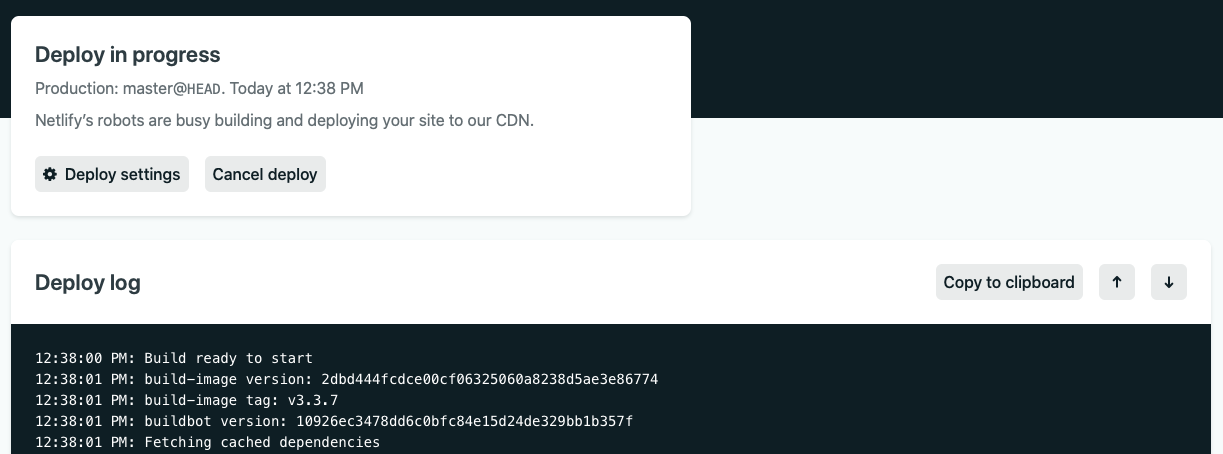
That’s almost it! Now, you can kick back and wait a couple of moments until Netlify does its thing.
Step 7: Done
And there we have it! That’s it. Done. Your site has now been deployed to Netlify along with a Netlify subdomain. From here, you’re free to add your own custom domain and explore what else Netlify can do!